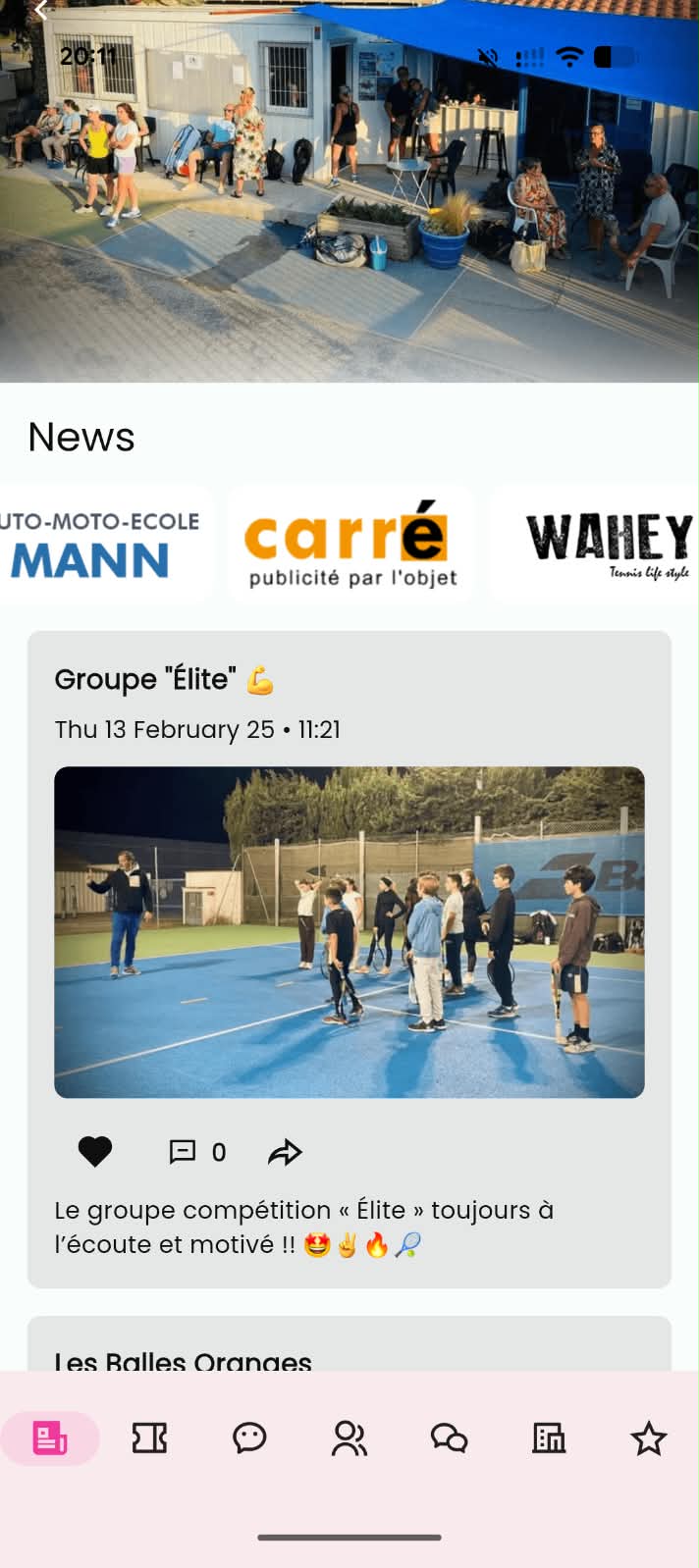
Think of "News Feed" as a private Instagram built for your organization. It's usually the first thing players see, so it's the fastest way to make your app feel alive: a club that posts nothing in its feed reads as an abandoned app, even if other modules are active.
Posts can include a photo, a short video (uploaded directly, capped at 30 seconds), or a YouTube link, plus a title and body text with an optional clickable link. Add a cover image and a scrolling sponsor logo carousel for visual polish, and let players like, share, and comment. You can schedule posts in advance, and trigger a push notification for anything time-sensitive.
Setup
The News Feed module has five configuration tabs:
- General: post news
- Appearance: customize the wall's background and overlay.
- Options: toggle "Show number of likes", "Show number of shares", "Push notifications for new posts", and "Allow comments".
- Sponsors: upload sponsor or partner logos with a linked URL, then add, edit, reorder, or delete them anytime. This space works for sponsors, but also for showcasing partners or sharing important links.
- Editors: grant posting rights to specific users by searching and selecting their username.
- Settings: customize module icone and name
- Sharing: generate a QR code and a deep link that take players straight to the News Feed inside the app.
⚠ Tip: App Managers automatically get Editor rights on every module, they don't need to be added separately here.
How to Post
Posting can happen from the builder or from inside the Movn app itself (switch to admin mode), so Editors and App Managers can share live updates directly from the court, the front desk, or the event floor.
- Step 1: Go to the News tab and then New Post.
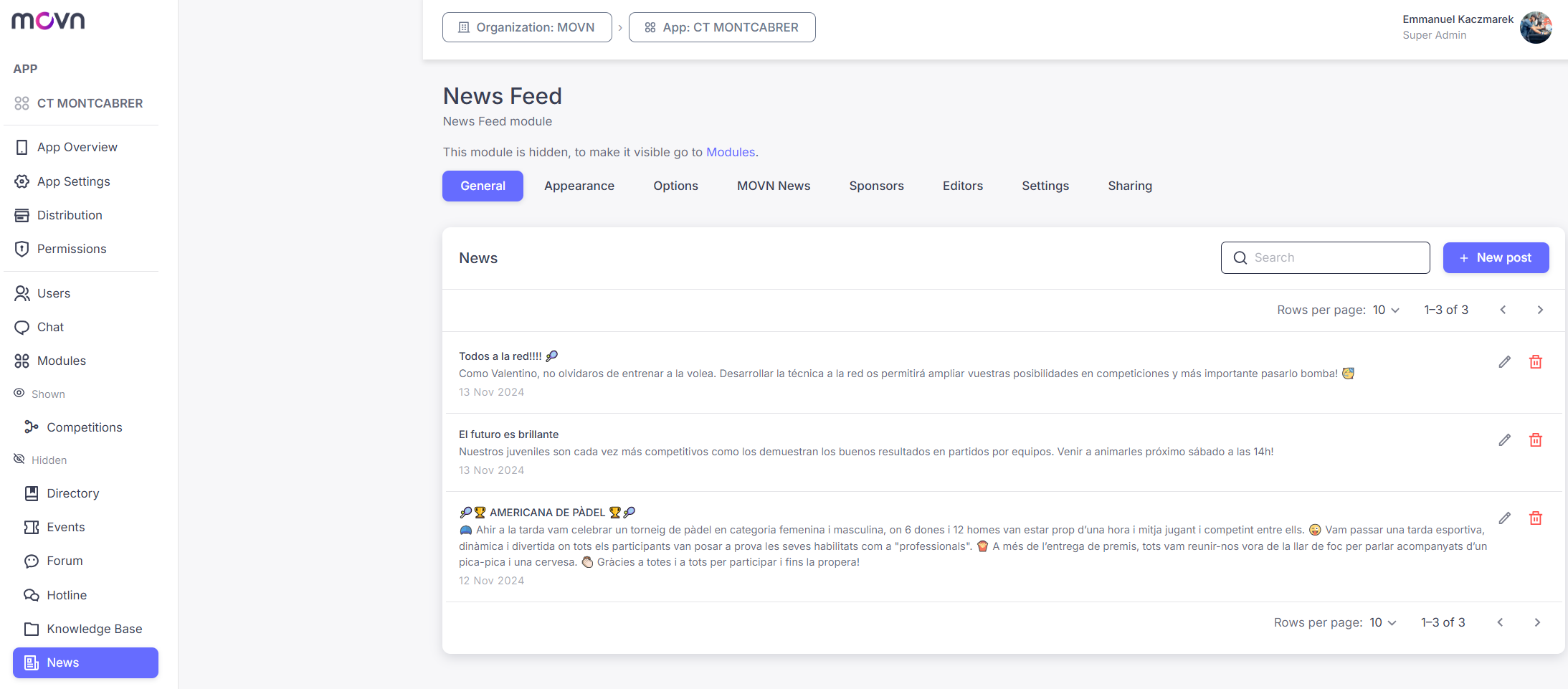
- Step 2: Choose your media: an image, a video (uploaded directly, capped at 30 seconds), or a YouTube link for longer content like game replays or interviews.
- Step 3: Write your Title (max 50 characters) and Body, with an optional link to a registration form, shop item, or article.
- Step 4: Tap Next.
- Step 5: Use the clock icon to schedule the post for later, or publish it immediately.