Modules define the features available to your community, like news, events, directories, or discussion.
Add a Module
- Step 1: Click + Add New.
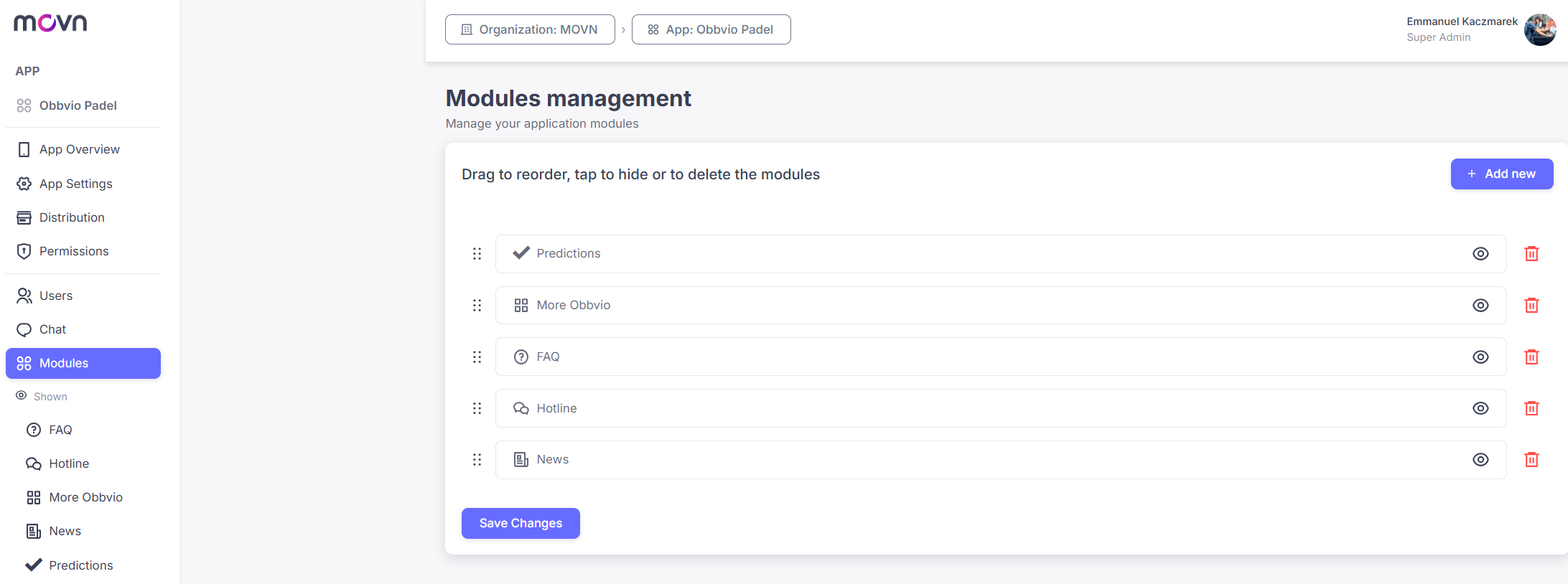
- Step 2: Select the modules you want to add.
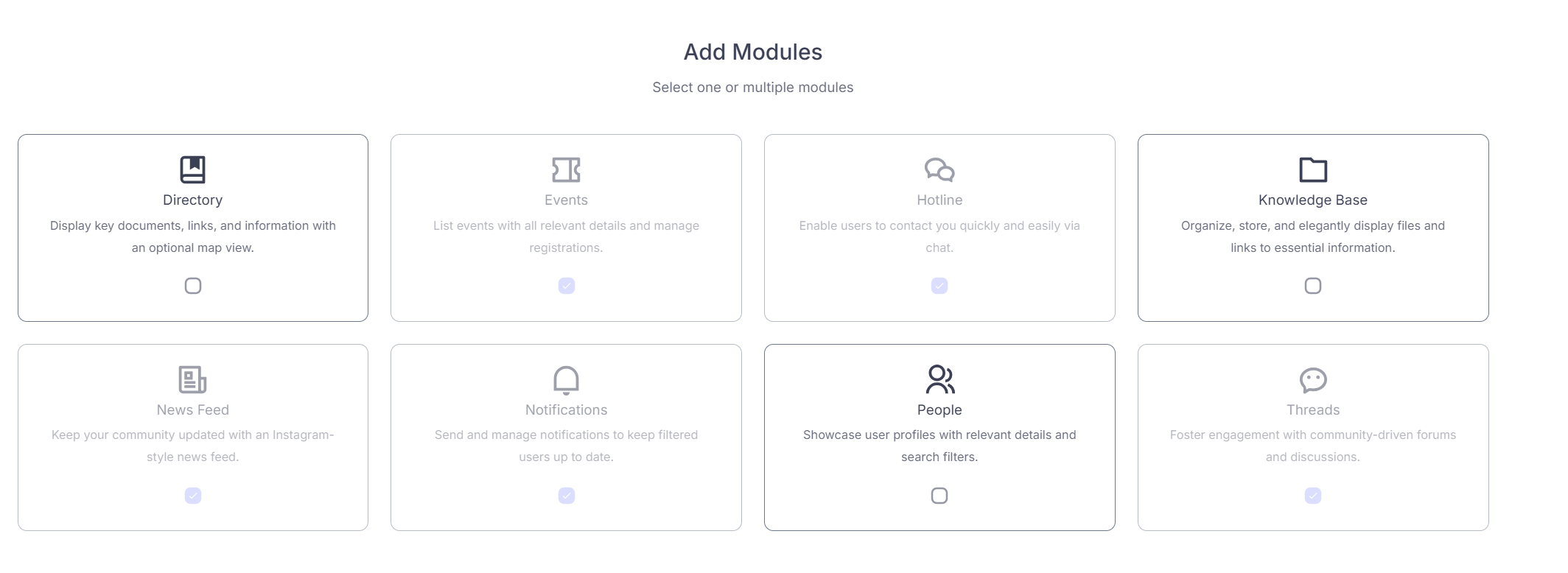
- Step 3: Choose how many instances of each module you want. Some modules can be added multiple times, for example, you may want several Directories or multiple Knowledge Bases.
- Step 4: Click Add.
New modules then appear in your modules list.
Manage Module Position & Visibility
- Position: click and hold the six-dot icon on the left of a module, then drag and drop it to reorder.
- Visibility: use the eye icon on the right, a visible eye shows the module, a hidden eye conceals it from users.
- Click Save Changes once you're done.
Tip: Modules are hidden by default when created. Make sure at least one module is visible, otherwise the app can't open.
Configure Your Modules
Once added, each module appears in the left-hand menu below Modules, where you configure and customize it.