Edit Your Organization Information
You can update your organization's basic information at any time.
- Step 1: Go to Settings in the left-hand menu.
- Step 2: Update the information and click Save.
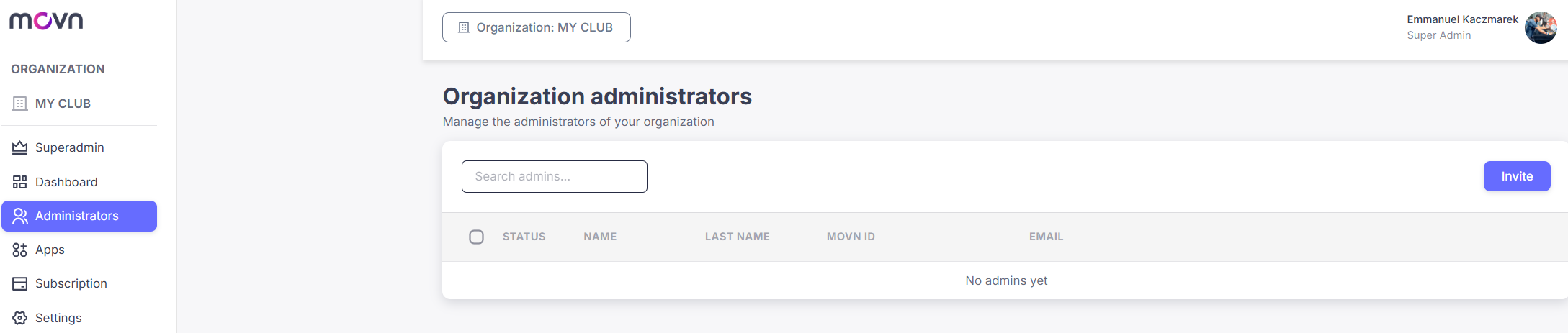
Manage Administrators
You can grant administrator access to other members of your organization so they can help manage your apps.
- Step 1: Select the Administrators tab in the left-hand menu.
- Step 2: Click Invite.
- Step 3: Enter the email address of the person you want to grant administrator rights to and click Send Invitation.
- Step 4: The invited person must accept the invitation sent by email to join the organization as an administrator.
⚠ Tip: If the invitation email doesn't appear in the inbox, ask the recipient to check their Spam folder.
Manage Roles
If you are an Owner, you can upgrade an Administrator to an Owner role once they've been granted Administrator access.
Key differences between Owner and Administrator roles:
- App creation: Owners can create new apps; Administrators cannot.
- Access to apps: Owners have access to all apps within the organization; Administrators only have access to the apps they've been granted.
- Permission management: Owners can grant access to apps and manage permissions; Administrators cannot assign access to apps.
To grant Owner rights to a member:
- Step 1: Add the member as an Administrator of your organization.
- Step 2: Go to the Administrators list, then click the pencil icon next to the member's name.
- Step 3: Change their role to Owner and click Save.
Manage Subscriptions
All apps include a 30-day free trial. To continue using your apps after the trial period, you'll need to enter your payment details before the trial ends.
- Step 1: Select the Subscription tab in the left-hand menu. Show Image
- Step 2: Click Add payment method and enter your payment details.
- Step 3: Your monthly invoices will be available in the Invoices section.