Hotline is a dedicated one-to-one channel between an individual member and your organization's management. Where the Chat module is built for social interaction, group threads, and fan chats, the Hotline keeps a member's question visible only to your organization, never to other members.
When you reply through the Hotline, you don't post under your own name, you post as the organization. Members see the response coming from your organization's name (for example, "City Tennis Club"), which also protects your staff and volunteers by keeping their personal profiles hidden while they handle official business.
Common uses
- Governance: during a general assembly, members submit questions to the board, who can moderate and answer them officially without the clutter of a group chat.
- Confidential reporting: players or parents can report sensitive issues directly to your organization's leadership, in total privacy.
- Member support: a digital front desk for questions about fees, lost property, or trial dates.
Setup
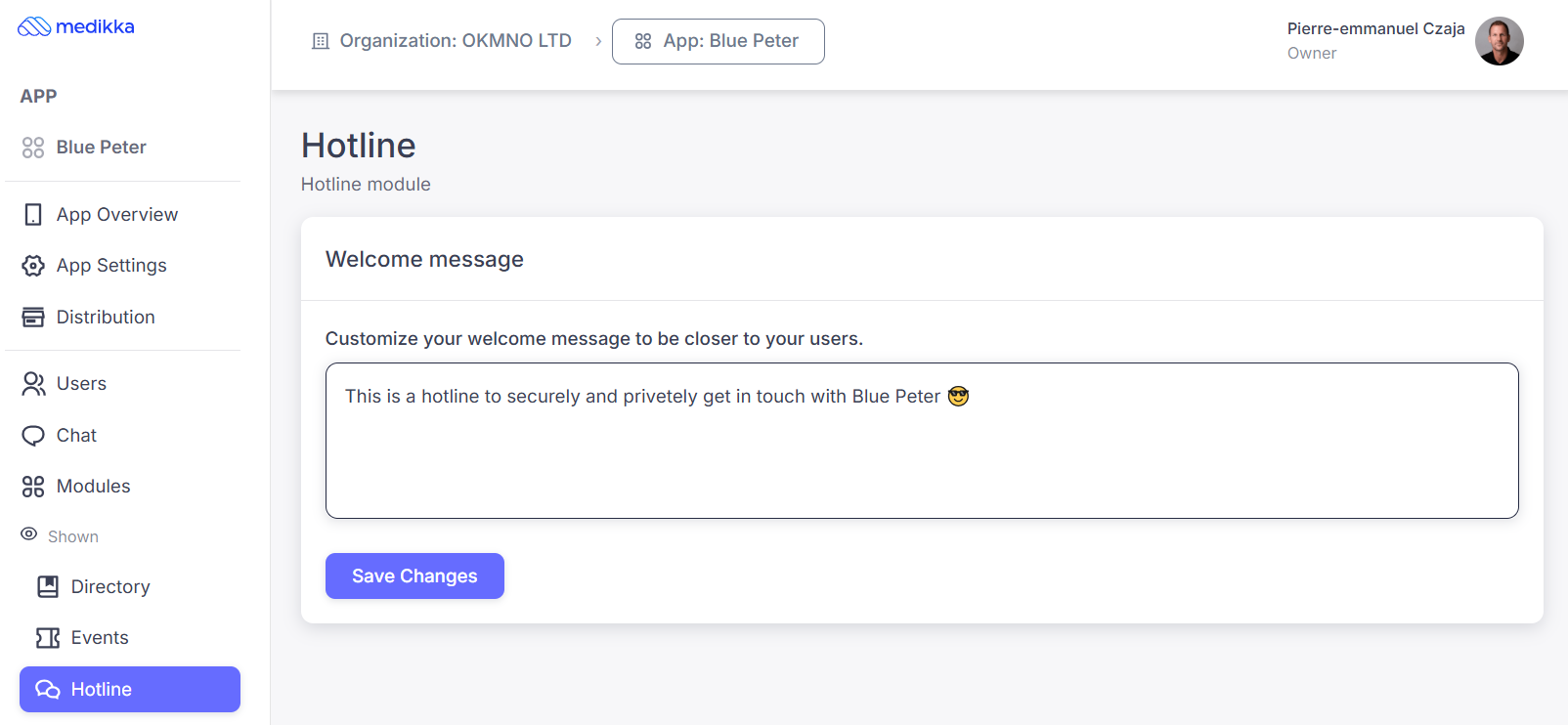
Make sure the Hotline module is installed, then:
- Step 1: Go to Hotline in the left-hand menu.
- Step 2: Type your personalized welcome message.
- Step 3: Click Save Changes.
Answering Messages
Hotline messages can only be answered from inside the Movn app, not from the builder. To access the Hotline, you first need to be assigned App Manager rights by your organization.
- Step 1: Open the Movn app on your mobile device.
- Step 2: Tap the Hotline module. You'll see your list of active conversations right away, no need to switch to Admin Mode first.
- Step 3: Select the conversation you want to reply to and type your response.
- Step 4: Archive the conversation once it's resolved, or leave it in the inbox if it needs further follow-up.
⚠ Tip: Archiving resolved conversations keeps your Hotline inbox organized and makes it easier to spot new requests.