Important: Chats themselves take place inside the Movn mobile app, not in the builder. The builder only lets administrators create or delete group chats, messages can only be sent and read from the Chat app inside Movn.
About the Movn Chat System
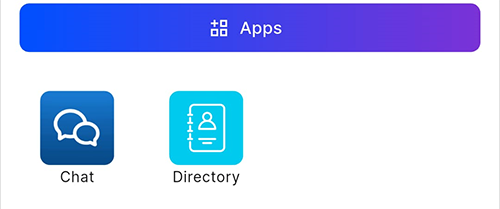
Movn includes a built-in chat app that can't be removed. It lets users send private messages to each other and take part in group conversations created by app managers. Group chats created from the builder automatically appear in the Chat app inside Movn. Each group chat displays its group logo and a small icon showing which app it belongs to.
Create a Group Chat
- Step 1: Select Chat in the left-hand menu and click + New Group.
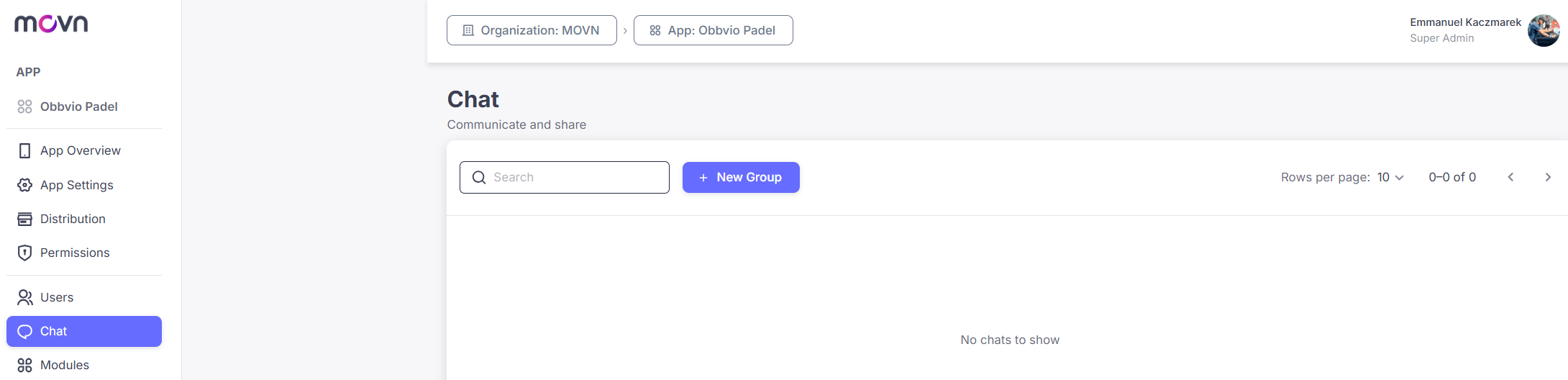
- Step 2: Select the users you want to include in the conversation.
- Step 3: Click Next.
- Step 4: Upload a group avatar.
- Step 5: Enter a group name.
- Step 6: Click Create.
Important notes: only users of the app can be added to a group chat; the administrator who creates the group doesn't automatically become a participant; group conversations can only be accessed and managed from the Chat app in Movn, the builder is only used to create, manage, or delete groups.
Manage Group Chats
- Step 1: Click on the group in the list.
- Step 2: Click Edit to update its info and members, or Delete to remove it.
When to Use Group Chats
Group chats are useful for project teams, event organization, working groups, and community coordination, letting selected members communicate quickly within the Movn app.
Privacy: Group chats in Movn are secure and privacy-friendly. Unlike messaging platforms such as WhatsApp, Movn group chats don't reveal personal information like participants' phone numbers.